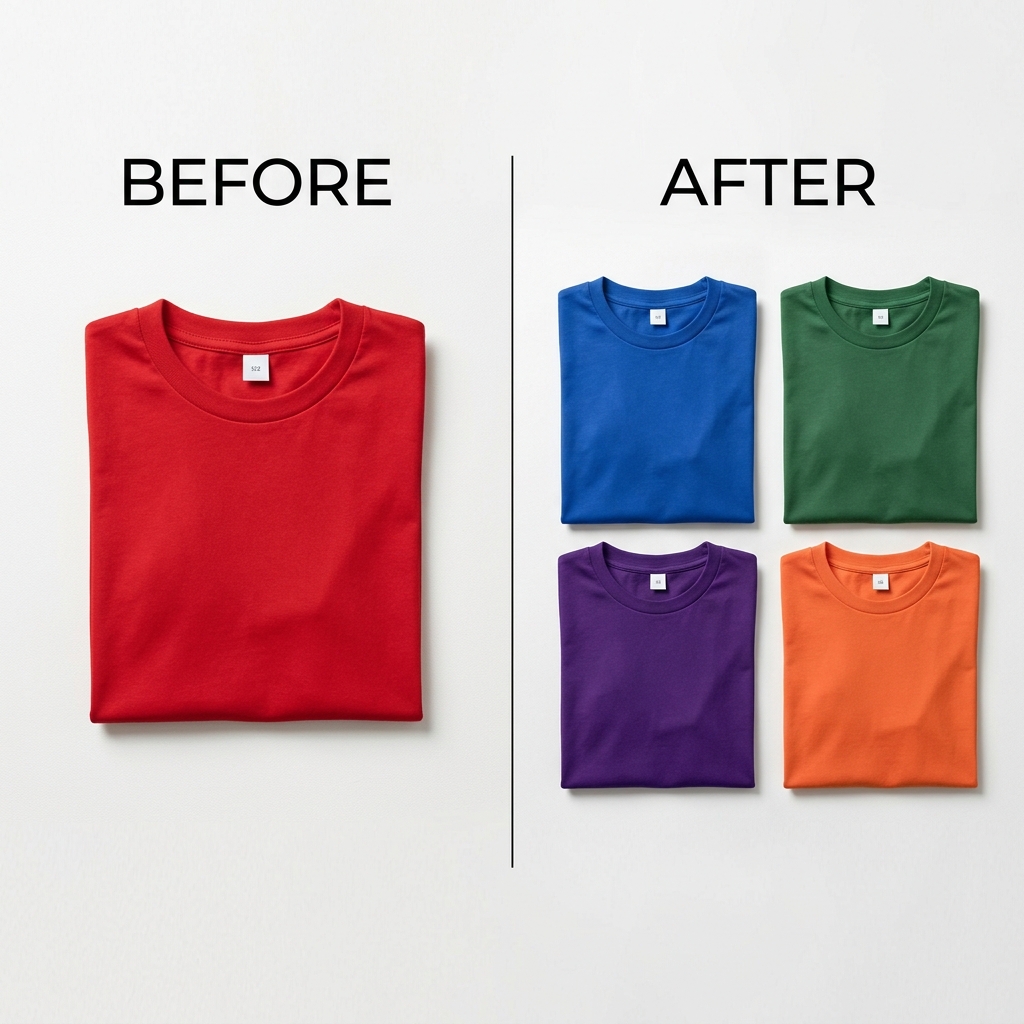
Why backgrounds are trickier than they look
The hard part of recoloring a background is the edge between subject and backdrop — hair, fur, soft product edges, and the gentle shadow a product casts onto the surface. A crude fill leaves a halo or eats the shadow, and the result looks pasted together.
Recolorify recolors per region and works in LAB color space, so the background region changes color while the subject stays untouched and the soft contact shadow is preserved. The backdrop reads as a real surface, not a flat block of color.
Change a background color in three steps
- Upload your photo. Recolorify indexes the background and subject regions automatically while you wait.
- Hover until the background highlights, then click it. Only the backdrop is selected; the product or portrait stays exactly as shot.
- Enter a target hex (for example #FFFFFF for an Amazon-ready pure white) or pick a color. Export a full-resolution PNG when it looks right.
Tips for clean, marketplace-ready results
- For Amazon main images, use pure white #FFFFFF; for brand pages, paste your exact brand background hex so every hero image matches.
- Check the subject edge at 100% zoom — soft edges can keep a hint of the old background, and one extra click cleans them up.
- Batch a whole shoot: lock a background color and recolor up to 500 photos in one pass, then export as a ZIP.
A dedicated tool for backgrounds
If you change backgrounds often, start from the dedicated background color changer — it is preset for backdrop selection and shadow preservation. For one-off mixed scenes, the object color changer works just as well.