Why shirts are tricky to recolor
A shirt is not a flat color. It's a surface full of folds, seams, highlights where the light hits, and shadows in the creases. When you change its color, all of that lighting has to survive — otherwise the shirt looks like a cardboard cutout. This is exactly where flat-fill editors fail: they replace the color and flatten the fabric at the same time.
The trick is to change only the color while keeping the lightness. Recolorify works in LAB color space, which holds the fabric's lightness (folds, weave, stitching, shadow) in one channel and the color in another. Swap the color channels and the recolored shirt keeps every wrinkle and reflection it had.
Step-by-step: change a shirt color
- Upload the photo of the shirt — PNG or JPG. A clear, well-lit garment recolors most cleanly.
- Hover over the shirt; the fabric region highlights automatically. Click it to select just the garment, not the skin or background.
- Enter an exact hex code or pick a color from the palette. The recolored preview appears instantly with folds and shadows intact.
- Need only the sleeves or a panel? Click that region specifically — mixed-material outfits are handled per region.
- Export a full-resolution PNG, ready for a store listing, lookbook, or social post.
Settings for the most realistic result
- Use Shading mode (the default) for cotton, denim, and matte fabric — it preserves the lightness curve so folds stay visible.
- For satin, leather, or glossy fabric, try Lightness mode so the highlight re-centers on the new color.
- Pick an exact brand hex rather than dragging a hue slider — apparel variants need to match across every listing.
- Check the result at 100% zoom: soft edges around collars and cuffs can carry a hint of the old color, and one extra click cleans them up.
From one photo to a full colorway set
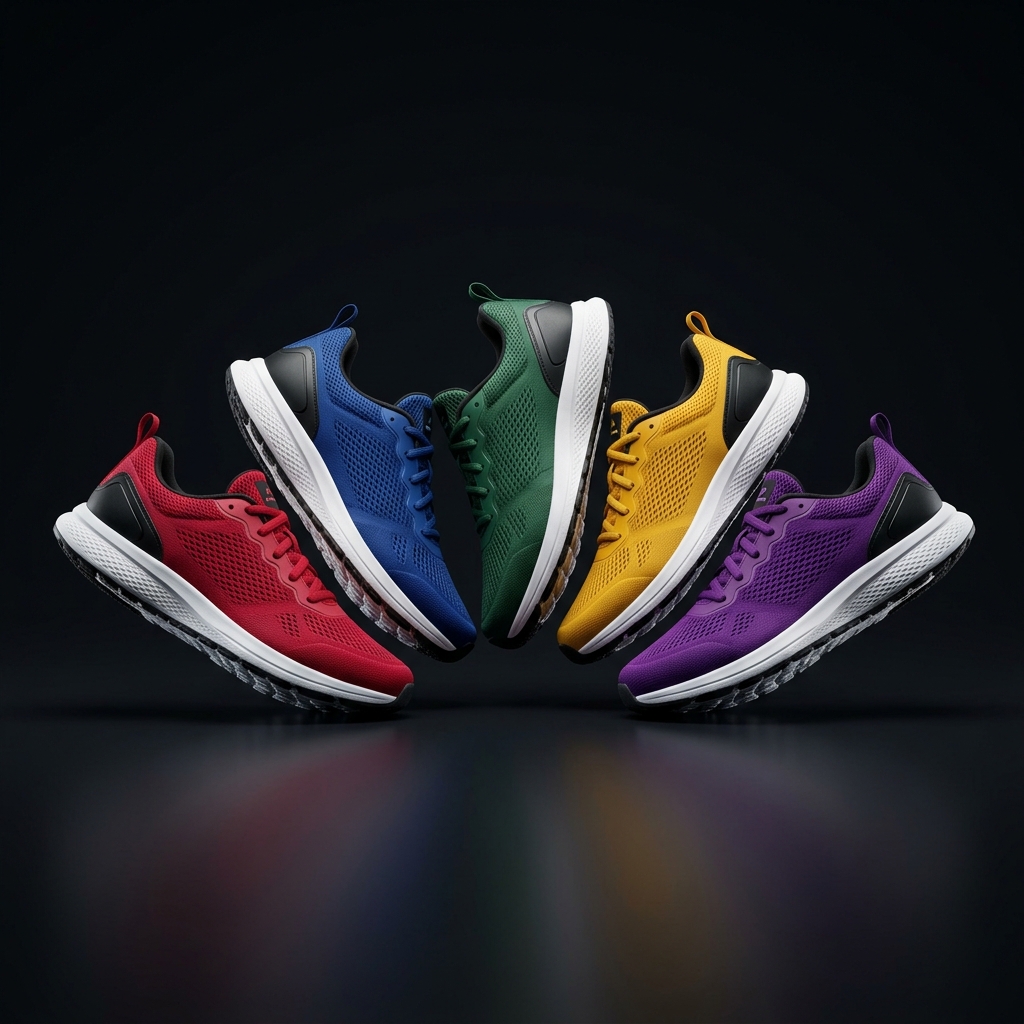
The real payoff is scale. Once you can change one shirt's color in seconds, you can generate an entire colorway set from a single photoshoot — eight colors of the same tee without eight reshoots. Lock a target color and batch-process a whole rack of garment photos, then export them as a ZIP for Shopify, Amazon, or Etsy. For the apparel-specific workflow and FAQs, the AI Clothes Color Changer page walks through fabric, folds, and exact hex matching in more depth.