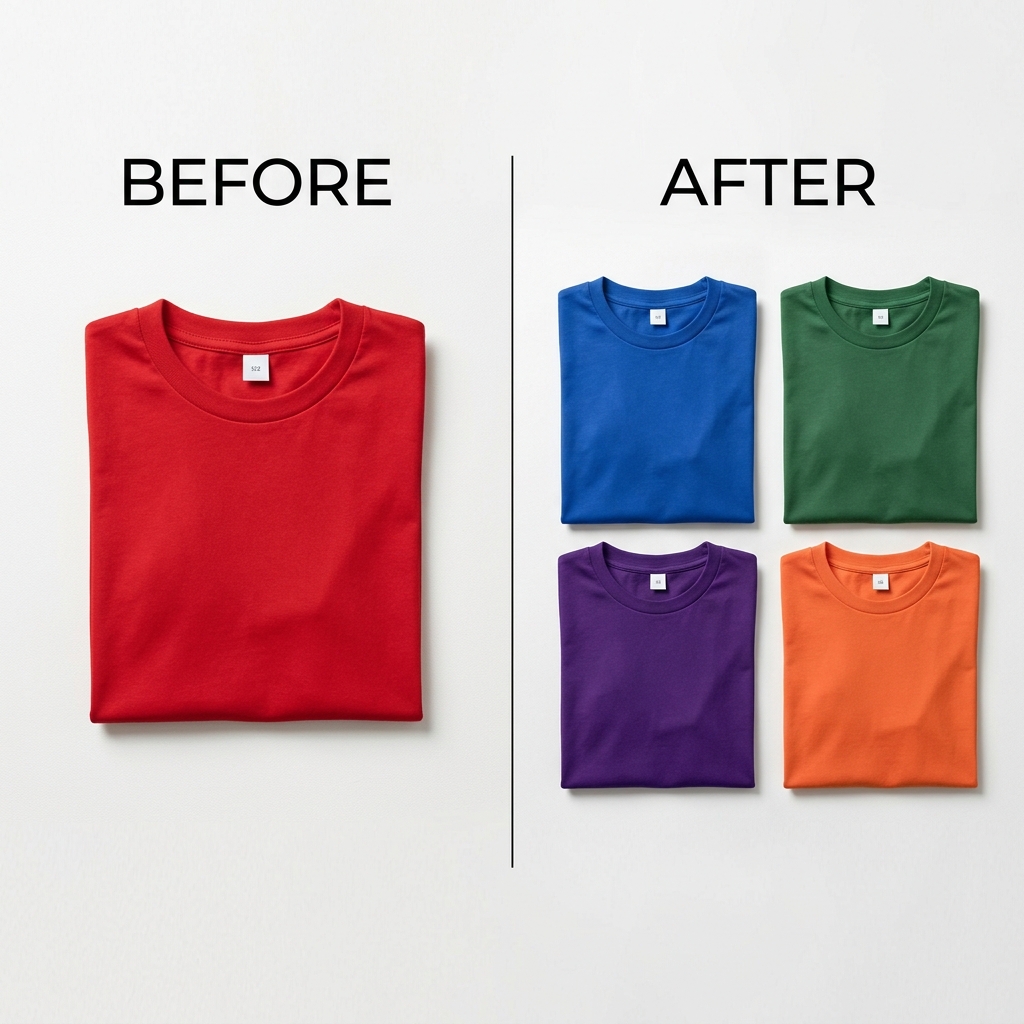
The universal three-step method
- Upload your photo. Recolorify automatically indexes the separate color regions while you wait.
- Hover to see regions light up, then click the one you want to change. Only that region is selected.
- Enter an exact hex code or pick a color. The recolored preview appears instantly with texture and shadows preserved; export a full-resolution PNG.
Why texture is the whole game
Most free color changers do a flat RGB swap, which flattens folds, grain, and highlights — the result looks fake. Recolorify recolors in LAB color space, which keeps lightness (texture, highlights, shadows) separate from color, so anything you recolor still looks like a real photograph.
It also recolors per region, so changing a shirt does not bleed onto skin, and changing a background does not touch the product. That precision is what makes a one-click recolor believable.
When to use a dedicated tool
The general workflow handles anything, but Recolorify has purpose-built pages with tuned defaults: clothes, shoes, bags, logos, cars, furniture, walls, hair, backgrounds, and product photos. Pick the one that matches your subject for the cleanest result.
Is it really free?
Yes — the free plan includes 5 exports every month with no credit card, so you can change the color of anything in a photo and download the result before deciding whether to upgrade for batch processing and higher volume.